
A dead phone may seem like a lost cause, especially when you’re looking to recover important files. However, there are a few methods to help you retrieve your data from a dead Samsung phone. Whether the device has a broken screen or is completely unresponsive, here are some ways to recover your data effectively.
1. Use Professional Data Recovery Software
One of the most reliable methods to recover files from a dead Samsung phone is through specialized Data Recovery Services tools. These software programs are designed to recover files from Android devices, even if they are unresponsive or dead.
How It Works:
-
File Formats Supported: These tools can recover a wide variety of file types, including images, videos, documents, contacts, and even call logs.
-
Scanning: The software performs a full scan of both the internal and external storage of your phone to recover all files.
-
Preview Before Recovery: You can preview each file before recovery, allowing you to selectively choose which files to retrieve. This is particularly useful for sifting through large amounts of data.
Popular Tools:
-
Dr.Fone – Data Recovery (Android)
-
EaseUS MobiSaver
-
iMobie PhoneRescue
2. Use Samsung’s “Find My Mobile” App
Samsung offers a feature known as Find My Mobile that can help recover data from a dead phone, provided certain conditions are met. This tool is primarily used to locate lost or stolen Samsung devices, but it can also back up your data if your device is still on and connected to the internet.
How It Works:
-
Pre-Requisite: You must have enabled the Find My Mobile feature before your phone became unresponsive.
-
Backup Option: If your phone’s touchscreen is not working but the device is powered on, you can use Find My Mobile to back up your data to Samsung’s cloud storage.
-
Network Connection: This method only works when your phone is connected to a network. If the device is turned off or offline, this option won’t be available.
Steps to Use Find My Mobile:
-
Go to the Find My Mobile website: https://findmymobile.samsung.com
-
Log in with your Samsung account credentials.
-
Select your device from the list.
-
Choose the Backup option to save your data to the cloud.
3. Remove the SD Card and SIM Card
If your Samsung phone is dead but the internal storage is still inaccessible, another approach is to recover data by removing the SD card and SIM card. If you have important files stored on these cards, this is a quick way to get back your data.
How It Works:
-
SD Card: If you have an SD card inserted in your phone, remove it and use a card reader to access the data on your computer.
-
SIM Card: For contacts and text messages stored on the SIM card, you can insert it into another phone to access this data.
4. Connect to a PC or Use ADB (Android Debug Bridge)
If your Samsung phone is not responding to touch, but still powers on, you can try connecting it to a computer using Android Debug Bridge (ADB). ADB is a powerful tool for managing Android devices, allowing you to access files even if the phone’s touchscreen isn’t working.
How It Works:
-
Enable USB Debugging: If you had USB debugging enabled before the phone became unresponsive, you can connect your phone to a PC and use ADB commands to pull data from it.
-
Install ADB on Your PC: You’ll need to install ADB on your computer to communicate with your device. If USB debugging was already enabled, you could transfer files using ADB commands.
Command Example:adb pull /sdcard/ /path/to/save/data/
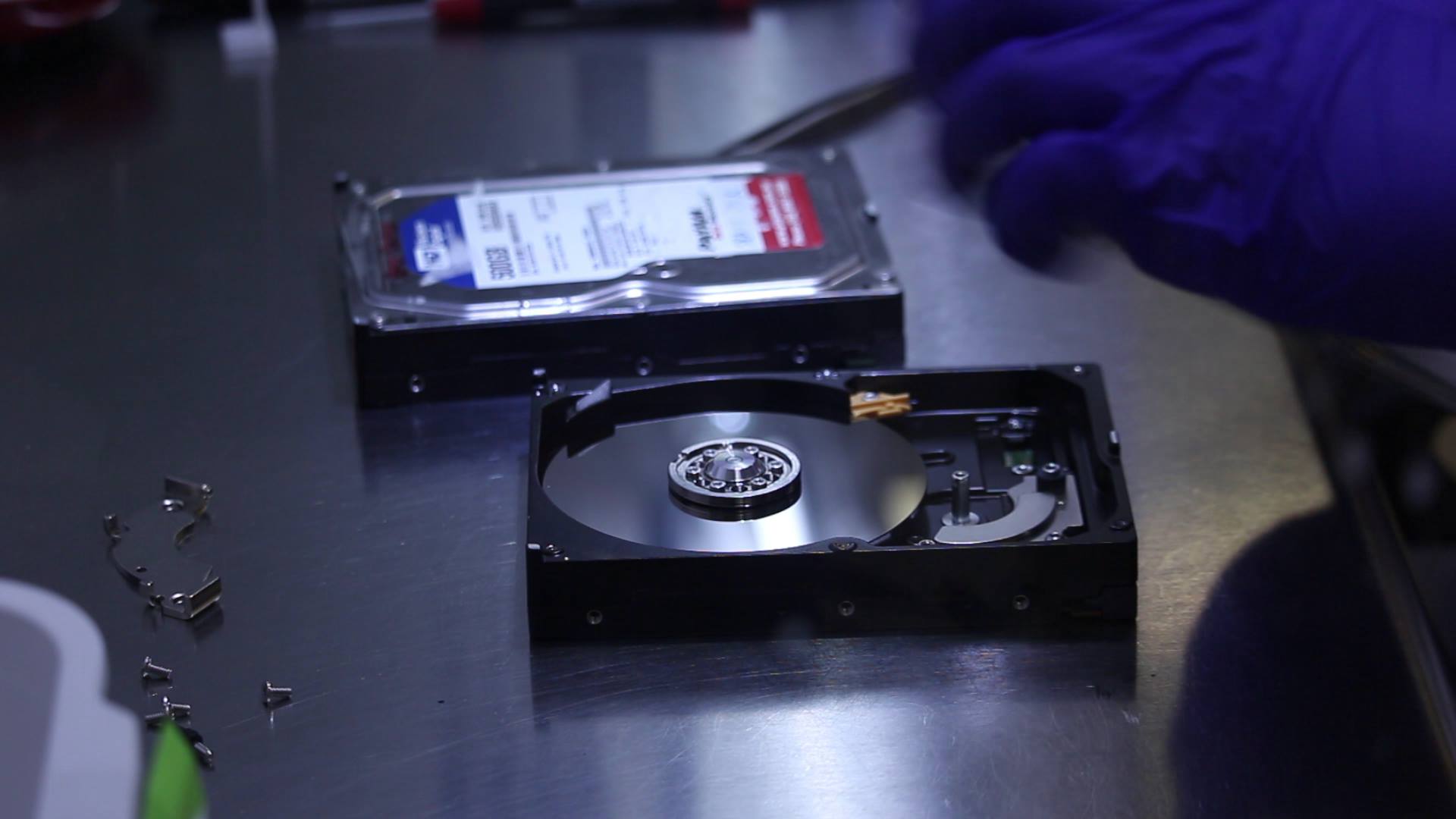
5. Visit a Professional Data Recovery Service
If the methods above don’t work, or if the data is especially valuable, it’s best to contact a professional data recovery service. Experts in the field have advanced tools and techniques to recover data from severely damaged phones.
In cases where the phone’s failure is suspected to be the result of malware, ransomware, or a targeted cyberattack, reaching out to a trusted incident response firm may also be advisable. These firms specialize in handling cybersecurity breaches, securing compromised devices, and working alongside data recovery teams to ensure that no further data loss or unauthorized access occurs during recovery.
Conclusion
Even if your Samsung phone is dead, there are still ways to recover your valuable data. Start by trying a data recovery software or use Samsung’s Find My Mobile if you’ve enabled the feature beforehand. If these methods fail, consider removing your SD and SIM cards for direct recovery, or reach out to a professional data recovery service for more complex cases. In the event of a potential cyber incident, don’t hesitate to consult an incident response firm to help protect your data and investigate the cause of failure. Always remember to regularly back up your data to avoid potential loss in the future!