
Lenovo laptops are known for their reliability, performance, and sleek design. However, even the best laptops are susceptible to data loss due to a variety of reasons. Files and data on your Lenovo laptop can be lost or corrupted due to accidental deletion, system failure, hard drive formatting, or even virus infections.
If you’ve found yourself in a situation where important files are lost, don’t worry—there are multiple ways to recover that data. In this article, we’ll guide you through one of the most effective methods to recover lost or deleted data from your Lenovo laptop.
Common Causes of Data Loss on Lenovo Laptops
Before diving into the recovery process, it’s important to understand some common causes of data loss:
-
Accidental Deletion: Sometimes, you may delete files by mistake, thinking they were not important.
-
System Failures: Operating system crashes or sudden shutdowns can result in data corruption.
-
Hard Drive Formatting: A simple error in partitioning or formatting can erase all the data on your Lenovo laptop.
-
Virus or Malware Infection: Malicious software can corrupt or delete important files from your hard drive.
Regardless of the cause, there are solutions available to help you retrieve your lost data.
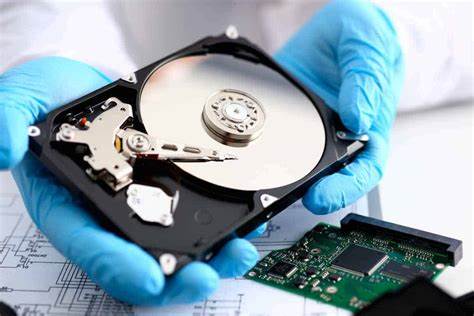
How To Recover Data From Lenovo Laptop
One of the most effective tools for recovering lost or deleted files is Recoverit Data Recovery—a powerful and user-friendly Lenovo data recovery program designed to recover deleted, formatted, or damaged files. Below are the simple steps to help you recover your data from a Lenovo laptop using this software.
Step 1: Download and Install Recoverit Data Recovery
-
Download: Visit the official Recoverit website and download the software to your Lenovo laptop. It is available for both Windows and Mac operating systems.
-
Install: Follow the on-screen instructions to install the program. Once installed, launch Recoverit.
Step 2: Select the Recovery Mode
Once the program is launched, you will be prompted to select the type of data recovery you wish to perform. If you are unsure where your lost data is, start with the “All-around Recovery” mode. However, if you want a more in-depth scan, you can choose the “Advanced Recovery” mode.
Master Recovery Mode
If your data is not showing up after the initial scan, you can switch to “Master Recovery Mode”. This mode will perform a deeper scan on your laptop’s hard disk, though it may take longer to complete. This is especially useful if you have lost data after a formatting or system crash.
Step 3: Scan Your Lenovo Laptop
-
Select the Location: Choose the partition or drive from which you want to recover files. For example, if you accidentally deleted files from the C drive or D drive, select the relevant partition.
-
Start the Scan: Click on the “Start” button to begin the scanning process. The software will scan the drive for lost or deleted files.
Step 4: Preview and Recover Your Data
After the scan is completed, the program will display a list of files it has found on your laptop. The files will be organized by type, such as photos, videos, documents, and audio files.
-
Preview Files: You can preview files before recovery to ensure they are the correct ones.
-
Select Files: Choose the files you wish to recover by checking the boxes next to them.
-
Recover: Once you’ve selected the files you want to restore, click “Recover”. Make sure to save the recovered data to a different location than the original partition to avoid overwriting any remaining lost files.
Step 5: Save Your Recovered Data
After the recovery process, you can now access your restored files. To ensure future data safety, consider backing up your files to an external hard drive or a cloud storage service, so you never have to worry about losing data again.
Additional Tips for Lenovo Laptop Data Recovery
-
Act Quickly: The sooner you attempt recovery after data loss, the higher the chances of successful retrieval. The longer you wait, the greater the risk that new data will overwrite the deleted files.
-
Avoid Writing New Data: When you realize your data is lost, avoid saving new files to the laptop until the recovery is completed. Writing new data can overwrite the space where your deleted data was stored.
-
Professional Data Recovery Services: If the software recovery methods don’t work, you may need to consult professional data recovery services. These services specialize in recovering data from damaged or corrupted hard drives.
Conclusion
Losing data from your Lenovo laptop can be frustrating, but with the right tools and techniques, you can recover most of it. Recoverit Data Recovery provides an excellent solution for retrieving files that were deleted, formatted, or lost due to system issues. By following the steps above, you can quickly and efficiently recover your data.
Remember, prevention is always better than cure—regular backups are essential to protecting your data in the future. Stay proactive, and ensure that your data is always secure.