
When a hard drive stops working, it can feel like a nightmare, especially if it contains important data. Many people may immediately recall the method of freezing a hard drive to repair it—while some claim success with this technique, we strongly advise against trying it. In this guide, we will cover the best practices for dealing with a hard drive failure and how you can attempt to recover data yourself, without resorting to potentially harmful or unproven methods.
Don’t Rush Into Freezing Your Hard Drive
The idea of freezing a malfunctioning hard drive is an old myth that suggests it could fix issues related to the motor or platter. However, this method is not recommended. Freezing a hard drive can cause condensation inside the device, which can damage the components further and make data recovery even more difficult.
If you are facing a hard drive failure, do not attempt freezing or any similar unproven methods. Instead, follow the proper steps outlined below.
Step 1: Assess the Situation
If your hard drive suddenly stops working, the first step is to understand what kind of issue you’re dealing with. There are typically two types of problems:
-
Software Issues: The hard drive might not be recognized due to system errors or driver issues. This is usually fixable by running data recovery software or adjusting settings in BIOS.
-
Hardware Issues: If the drive is making unusual noises, such as beeping, clicking, or grinding, it is likely a hardware issue. This is much more serious and requires careful handling.
Signs of Hardware Failure:
-
No Detection in BIOS: If the hard drive is not detected by the BIOS after rebooting, this indicates that it is experiencing a hardware problem. This can be caused by issues with the drive’s internal components or a failed connection.
-
Strange Noises: Clicking, grinding, or beeping noises usually point to mechanical failure within the hard drive.
-
Inability to Boot: If the system is unable to boot from the hard drive, it’s a sign that the drive could be physically damaged.
Step 2: Attempt Basic Troubleshooting
If the issue seems to be software-related or the drive is detected by BIOS, you can attempt basic troubleshooting steps before diving into data recovery software:
-
Check the Power and Cables: Sometimes, a loose or faulty cable can prevent the drive from working. Ensure that all power cables and data cables are securely connected.
-
Test the Hard Drive on Another Computer: If you have another computer available, try connecting the hard drive to it. If it’s detected, you may be able to recover the data without needing specialized software.
-
Try a Different USB Port or Adapter: For external drives, sometimes the issue can be as simple as a malfunctioning port or adapter. Test with different connections to see if that resolves the issue.
Step 3: Data Recovery for Hardware Failures
If your hard drive fails due to internal hardware issues (e.g., damaged platters or a malfunctioning motor), data recovery becomes more complex. However, there are still methods you can try to salvage your data.
Use Data Recovery Software (For Detectable Drives)
If the hard drive is still detectable in BIOS, you can attempt data recovery using recovery software. Some popular and reliable programs include:
-
Recuva (Windows)
-
EaseUS Data Recovery Wizard (Windows/Mac)
-
Disk Drill (Windows/Mac)
These programs allow you to recover files even if the drive is not booting up properly. They work by scanning the drive for lost or deleted files and allowing you to restore them.
Step 4: Hard Drive Plate Issues – What You Can Do
If you suspect that the issue lies with the hard drive’s plate or read/write head, it’s crucial to understand that recovery may require professional help. Physical damage to the hard drive’s platter or components can make data recovery extremely difficult and often impossible without specialized equipment.
What Not to Do:
-
Avoid Opening the Hard Drive: Opening the hard drive yourself can expose it to dust and contaminants, which may make recovery impossible. It’s crucial to keep the drive sealed until it can be handled properly.
-
Don’t Apply Excessive Force: If the hard drive is making grinding noises, avoid shaking or forcing it to work, as this can cause additional damage.
What You Can Try:
-
Attempt to Connect to an External Enclosure: If the hard drive is an external model, try connecting it to an external hard drive enclosure. This can bypass certain internal connections and might allow you to retrieve data.
Step 5: Seek Professional Help
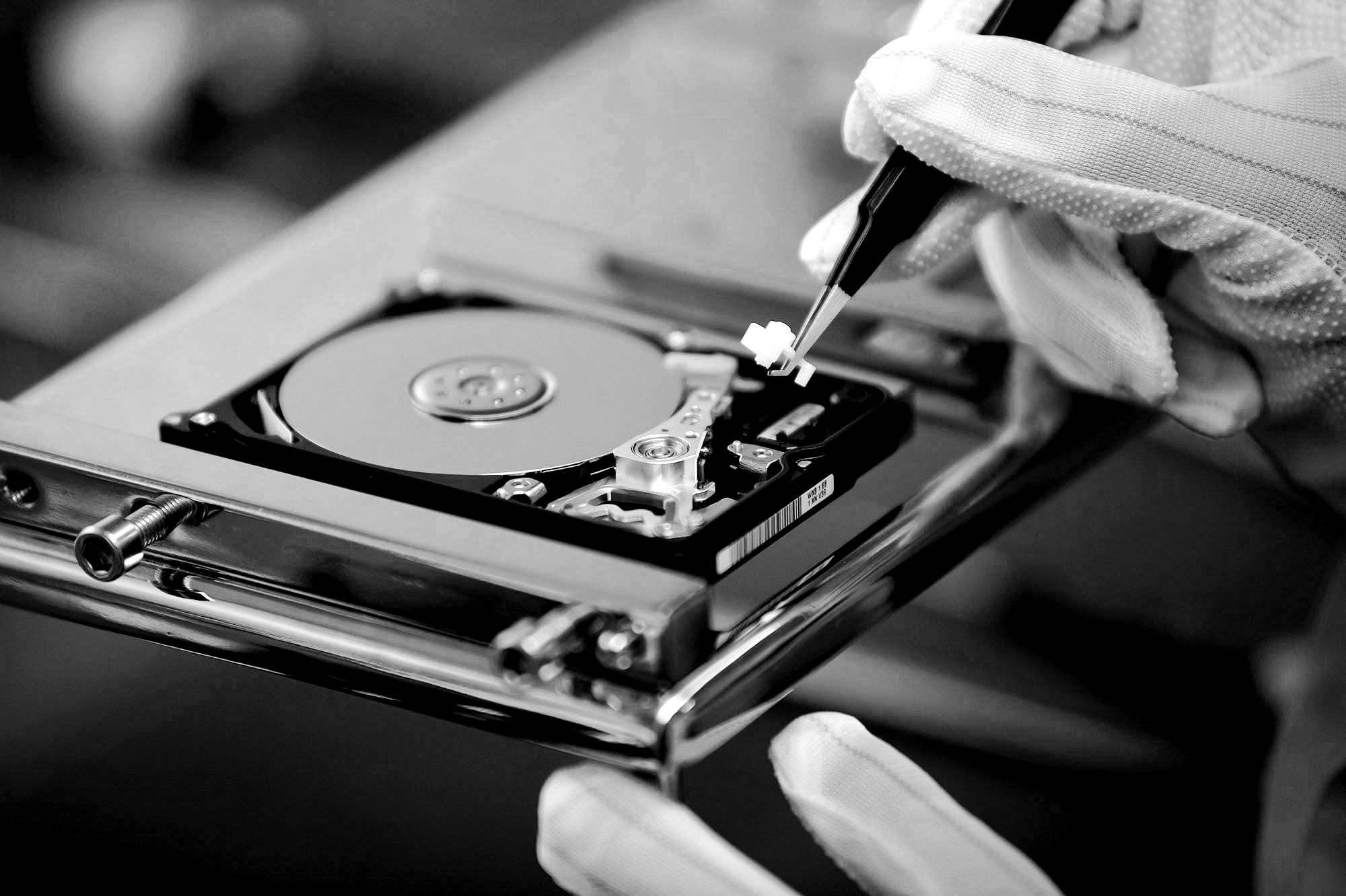
If all else fails, and especially if your hard drive has significant mechanical damage, the best course of action is to seek professional data recovery services. Experts in the field can use specialized tools and clean rooms to recover data from damaged drives, which is typically impossible for the average user to do on their own.
Conclusion
While attempting hard drive repair and data recovery on your own can be rewarding, it is not without risks. It’s essential to understand the nature of the problem before taking any action. For minor software issues, recovery software may be sufficient. However, for serious hardware failures, attempting DIY recovery could cause further damage, and professional assistance may be required. Always prioritize the safety of your data and avoid risky methods like freezing your hard drive. If in doubt, don’t hesitate to reach out to a professional data recovery service for help.